Showing posts with label SGX. Show all posts

Thursday, October 17, 2019

Create stock portfolio on Google Sheets using SGX price data (Updated)

This is the update to my previous post as the revamp of SGX site actually break the previous script where the download link is updated with no date embedded in the link. As there is no date in the link, this script will need to rely on other information which is the running number embedded in the link to automate the download of new data everyday.

Few preparations needed to be done.

Firstly, you need to add in Singapore Calendar in your Google calendar. This can be done as shown below as the script will use this calendar to determine whether the script is run on holiday day:


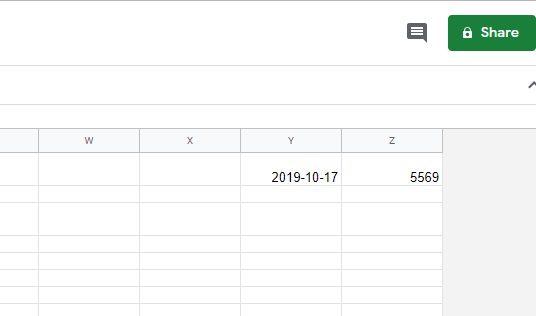
Secondly, you need to create a new Google Sheets. You need to create 2 sheets with first sheet use to store your portfolio and the second sheet (named as "Data") use to store your downloaded data. In this "Data" sheet, update the last 2 column with the date and counter value. You can get these value by looking at the download link when you download the data from SGX website.


Go to Google Chrome Download menu, and you can find the actual download link, note the number in the link 


So for this example, the date is 17 Oct 2019 and counter is 5569. Please enter the value to the "data" sheet as shown below.


Once you are done with above, open "Script Editor" under Tools menu and paste the following script or you can download from this link.


Once the data is downloaded to the "Data" sheet, you can now use formula to match stock quotes (column O) and retrieve the share last done price (column G).


Below is the sample table structure for the portfolio sheet.


For the last done price, enter the following formula

=INDEX(Data!$G$1:$G$1091, MATCH (B2, Data!$O$1:$O$1091, 0))

Please note that 1091 is the total row in the "Data" sheet. As there will be new stock list or delist, you might need to adjust this number from time to time.


You can configure trigger to have this script run at certain time everyday. As SGX only release this data after 630pm, i set the trigger time to between 7pm to 8pm.


Thursday, August 16, 2018

Create stock portfolio on Google Sheets using SGX price data

18 Oct 2019: Please refer to this link for the updated post on how to create stock portfolio using SGX price Data.

It used to be very easy to create your SGX stock portfolio on Google Sheets as we can rely on Yahoo Finance or even Google Finance data. However, this changed when both stop the services. As such, the next best thing is to just rely on SGX daily price file which is available after market close. However, to automatically update your Google Sheets with this data is no longer a simple process. Below i share my steps on how i download the SGX price list from within Google sheets, do some data formatting and use formula to update the stock price accordingly.

1. Create a new Google Sheets and click "Script Editor" under Tools menu.


2. Paste the following code and click save. If you have issue with the code below like incorrect special character, please copy the code from this link.

function onOpen() {
  var spreadsheet = SpreadsheetApp.getActive();
  var menuItems = [
    {name: 'Import SGX data...', functionName: 'importSGX'},
  ];
  spreadsheet.addMenu('Import', menuItems);
}

function importSGX() {
  var spreadsheet = SpreadsheetApp.getActive();
  var dataSheet = spreadsheet.getSheetByName('Data');
  dataSheet.activate();
   
  // Since the data is only available after market close
  // codes below will make sure when it is run before market close, pick yesterday date
  // Current assumption is data is available after 6pm
  var todayDateTime = new Date();
  var currentHour = todayDateTime.getHours();

  if (currentHour >= 18) {
    var dataDate = Utilities.formatDate(new Date(), "GMT+8", "yyyy-MM-dd");
    Logger.log(dataDate);
  }else{
    var MILLIS_PER_DAY = 1000 * 60 * 60 * 24;
    var now = new Date();
    var dataDate = Utilities.formatDate(new Date(now.getTime() - MILLIS_PER_DAY), "GMT+8", "yyyy-MM-dd");
    Logger.log(dataDate);
  }

  var importString = "http://infopub.sgx.com/Apps?A=COW_Prices_Content&B=SecuritiesHistoricalPrice&F=5254&G=SESprice.dat&H=" + dataDate;
  
  // import SGX price list data into datasheet
  var csvUrl = importString;
  var csvContent = UrlFetchApp.fetch(csvUrl).getContentText();
  var csvData = Utilities.parseCsv(csvContent,';');
  
  dataSheet.getRange(1, 1, csvData.length, csvData[0].length).setValues(csvData);
  
  // Check if data is correct, if there is valid data, cell(1,1) won't be blank.
  // If there is valid data, split the data using ; delimiter.
  var checkValidData = dataSheet.getRange(1,1);
  if (!checkValidData.isBlank()){
    
    var startRow = 1;
    var endRow = dataSheet.getLastRow();
   
    // Get the range value for stock codes, convert all the values to string and trim it.
    // Withut trim, matching could be troublesome because you need to
    // manually add space so to match
    var range = dataSheet.getRange("O1:O");
    var rangeValues = range.getValues();
    range.setNumberFormat("@");
    
    for (var i = startRow; i <= endRow; i++) {
       // accessing the array data, array start from 0, that's why need to put i-1
       var data = rangeValues[i-1][0];
       dataSheet.getRange(i,15).setValue(String(data).trim());
      }
   }
}

3. There will be prompt to Edit Project Name. Just put any name.


4. Go back to your Google Sheets and reload the browser.  After reload, you should be able to see a new menu called Import appear.


5. Create a new sheet and named it "Data". After rename, click on Import > Import SGX data...


6. When run this script for the first time, Google Sheets will prompt Authorisation Required message. Just click Continue and follow the processes to allow script to run. Once it is done, you can see the Data sheet populated with SGX price list data.


7. Go back to first sheet and you can now use formula to match stock quotes (column O) and retrieve the share last done price (column G). Below is the sample table structure for the portfolio sheet.


This is the formula used on Last Done Price column, B2 is cell for stock quotes.

=INDEX(Data!$G$1:$G$1066, MATCH (B2, Data!$O$1:$O$1066, 0))

8. You can also configure trigger to have this script run at certain time everyday. Again go to Script editor and under Edit menu, click Current project's trigger.


9. Click on No trigger set up. Click here to add one now.


10. Select importSGX function to run, Time-driven, Day timer event with time set to 6:00 p.m. to 7:00 p.m. and click Save. And this will make this script run between 6 pm to 7 pm daily.


So that's it, you can start construct your own portfolio for for your shares in SGX.

Wednesday, August 29, 2012

Get Singapore Stock Market Quotes in Google Docs

*20 August 2018 update: Due to data unavailability for both Google Finance and Yahoo finance, i had created a new Google Apps Script to download and import SGX daily price list data to Google sheets. Please refer to this link for details.

* 24 Feb 2014 update: Recently, i have had some problem with getting the result from Yahoo finance and the cell always show #VALUE! with error - "The data could not be retrieved. Please check the URL". I tried to use GoogleFinance again and it seems like they finally start to support SGX stocks. So to get the price of stock like Keppel Land, just type the following in the cell

=GoogleFinance("SGX:K17")

So the syntax is quite easy, just type in the stock quote name with SGX: precede in front. The only problem is the limitation of 2 decimal points...

For more information on what data can be retrieved, please refer to this link.

=====================================================================

If you are using Google Docs to keep track of your stocks statistics, this will be something very useful to you. By having the ability to import stock market quotes directly, you can manipulate this data further, example - to calculate paper gain/loss quickly.

Google actually provide a useful tool which is GoogleFinance* for this purpose but unfortunately, Singapore stock is not supported. Luckily, there is still this tool call ImportData which we can use to import structured data from other website like Yahoo Finance.

To do this, first,  you need to know your stock symbol. You can get this easily by typing the stock name in the get quotes field. Screenshot shows the list of possible stocks after i type in Keppel Land.


After you know your stock symbol, you just need to type the following in the cell of your spreadsheet document and replace the italic word with your own options. You can go to the following link for all the special tag options.

=ImportData("http://finance.yahoo.com/d/quotes.csv?s=stock symbol&f=special tag")

For example, if you want to get last trade price for Keppel Land, i just type the following:

=ImportData("http://finance.yahoo.com/d/quotes.csv?s=k17.si&f=l1")

and that's it, you can see that Google Docs will load the last trade price in the cell as shown below: