Thursday, October 29, 2009

Can't initialize IBM DS4800 LUN under Windows 2003

Scenario:

You create 2 LUNs from IBM and assign it to one Windows host. You have no problem initialize the first LUN but when it comes to second LUN, Windows will prompt message saying "The operation did not complete. Check the System Event Log for more information on the error" and you are unable to initialize.


When you go the Event viewer, the viewer shows "The device....disappeared from the system without first being prepared for removal"


The problem might be because you allocate the LUN to the different controller that you connect to your host as shown in the diagram below.

So to solve this, you can set the Ownership/Preferred Path to Controller in Slot A. Take note that if you only have one LUN and you allocate to controller that is not connected to your host. You might not even see the LUN from your host at all.

Friday, October 2, 2009

Set note pages slide image and notes image to standard size

This usually happen when you copy a bunch of slides from other presentation and incorporate it into your current presentation. and the result might be what you see below, page 1's slide image is smaller than page 2's slide image
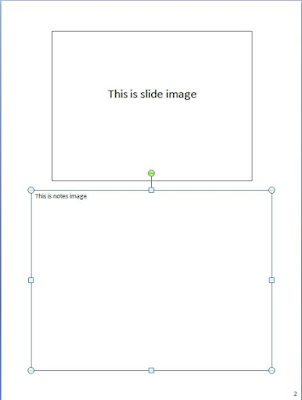

Page 1

Page 2

To overcome this, i prepare the VBA script below. Not sure if there is a non-VBA method that can be used to solve this, but if yes, please let me know also.


Sub resize()
Dim x As Long
Dim y As Long
Dim i As Long
Dim arrayCount As Integer
Dim shapeNameArray() As String

' Loop through every presentation slide(s)
For x = 1 To ActivePresentation.Slides.Count

' Manipulate shapes in notespage view
With ActivePresentation.Slides(x).NotesPage

' Loop through every shapes in the notepage view slide
For y = 1 To .Shapes.Count

' To select the presentation slide
' Usually the presentation slide will be on top,
' so use top property to limit the selection
' the use of height property is optional
' the use of this is mainly to filter away shapes like
' header, footer and page number
' which might be in place, and usually those shapes' height will not
' be higher than 90, so i use this as the condition
' The reason i say is optional is because you can always go to
' Edit Header and Footer to take out
' all header, footer and page number
' and reapply them later
' 1 inchi= 72

If .Shapes(y).Top < 100 And .Shapes(y).Height > 90 Then
.Shapes(y).Height = 364.32
.Shapes(y).Width = 486
.Shapes(y).Top = 28.08
.Shapes(y).Left = 46.8

' To select the notes page
' Usually notes page will be be below presentation slide
' so use top property to limit the selection
' Again use of height is optional

ElseIf .Shapes(y).Height > 90 And .Shapes(y).Top > 100 Then
.Shapes(y).Height = 322.56
.Shapes(y).Width = 486
.Shapes(y).Top = 404.64
.Shapes(y).Left = 46.8
Else
' Do nothing
' or you want to apply something to the filtered shape here
End If

Next y
End With
Next x
End Sub


To use this code, you must first enable macro if you have not donw so and then open the VBA editor, follow this link to find out how to do it. Remember, always make a copy of your power point slide before you applying any changes to it. This code is only tested on PowerPoint 2007.

Wednesday, September 16, 2009

Revised script for IP range ping

Last year i actually wrote a script to do the same thing but the script is not really good and always have the annoyed dos windows pop-up. This time, i using the example on the "Hey, Scripting Guy!" and it is a much much better script in terms of neatness and speed) for doing the same thing


'Create a file to write the result
'============================================================

FileName = "PingResult.txt"
Set fso = CreateObject("Scripting.FileSystemObject")

If (fso.FileExists(FileName)) Then
Set resultFile = fso.OpenTextFile(FileName, 8)
else
Set resultFile = fso.CreateTextFile(FileName, true)
end if


subnetID = "192.168.35."

For range = 2 to 254 ' specify range of ip
ipAddress = subnetID & range
if Ping(ipAddress) then
resultFile.writeline ipAddress & " is alive"
else
resultFile.writeline ipAddress & " is dead"
end if
next

'Using Win32_PingStatus class
'============================================================
Function Ping(ipAddress)

Set objWMIService = _
GetObject("winmgmts:\\.\root\cimv2")
Set colItems = objWMIService.ExecQuery _
("Select * from Win32_PingStatus " & _
"Where Address = '" & ipAddress & "'")
For Each objItem in colItems
If objItem.StatusCode = 0 Then
Ping = True
else
Ping = False
End If
Next

End Function

Sunday, August 23, 2009

Screen capture program to capture mouse pointer

If you wat to do screen capture to also include mouse pointer, this program will come in handy. Furthermore, it is free. :)

With Windows Screen Capture key

With ScreenHunter program:

How to connect to hidden accesspoint on Windows Vista

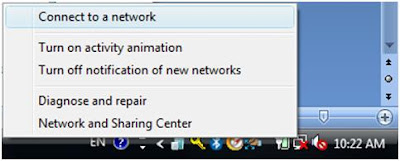
1. Right click on the network icon on your right below tasbar and select "connect to a network" as shown

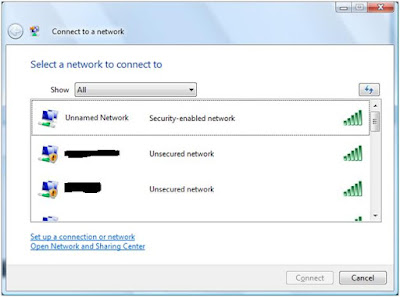
2. On the "Select a network to connect to" window, click on "Setup a connection or network".


3. On the "Choose a connection option", select "Manually connect to a wireless network".
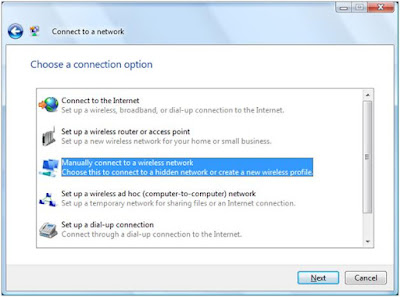

4. On the next window, you need to keyin the required information. For the option "Connect even if the network is not broadcasting", please visit this link to learn more about the secuirity issue on this opton.

5. And lastly, just select "Connect to...".

Wednesday, August 19, 2009

Where to download Brocade/Cisco firmware?

As you know, HP also sell Brocade/Cisco FC switchs which they rebrand them to storageworks B-series/C-series switches. You can actually get the firmware from their site. Just click this.

Thursday, August 6, 2009

Task Scheduler - problem running the vbs

If you encounter task scheduler try to run your vbs task which involve action on network drive but fail. Besides looking at security permission, please also check the following setting shows on the picture below. Make sure is "Run only when user is logged on". If you choose the "Run whether user is logged on or not", you might not run your task with the intended user and thus fail.

Windows 2008 Task Scheduler