
Tuesday, July 28, 2009
Nokia E71 - How to type underscore "_"
Apparently underscore is not part of the symbol can be found on the keypad. To type it, you have to press the "Ctrl" key once and select this symbol from the on screen symbol table. This key is located at the bottom right corner of your phone keypad as shown in the picture below.


Wednesday, July 22, 2009
Script for event log backup
Simple script to do the event log backup using wevtutil, this is an unpolished script, please use it with care. wevutil is supported on Windows 2008 and Windows Vista.
'Backup event log script
'Get the current date and time
CurrentDate = now
sAcceptableChars = "abcdefghijklmnopqrstuvwxyz0123456789"
'Remove "/", ":", " " from CurrentDate and put it
'in FixDate
For x = 1 to Len(CurrentDate)
ch = mid(CurrentDate, x, 1)
If InStr(sAcceptableChars, LCase(ch)) > 0 Then
FixDate = FixDate & ch
End If
Next
Set wshShell = WScript.CreateObject ("WSCript.shell")
'Start to do event log backup
wshshell.run "C:\Windows\System32\wevtutil cl _
Application /bu:E:\AppEvent_" & FixDate & ".evt", 1, True
wshshell.run "C:\Windows\System32\wevtutil cl Security _
/bu:E:\SecurityEvent_" & FixDate & ".evt", 1, True
wshshell.run "C:\Windows\System32\wevtutil cl Setup _
/bu:E:\SetupEvent_" & FixDate & ".evt", 1, True
wshshell.run "C:\Windows\System32\wevtutil cl System _
/bu:E:\SystemEvent_" & FixDate & ".evt", 1, True
set wshshell = nothing
Monday, July 13, 2009
How to move your shape data text box in Visio 2007
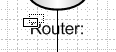
To do this, you have to use "Text Block Tool" as shown below.

Once you select this, move your mouse pointer over any shape data text box and you can start to move shape data text box when your mouse pointer change to overlapped double rectangle as shown below.
Wednesday, June 17, 2009
Free Upgrade to QuickOffice 6 for Nokia E71
Free upgrade for your QuickOffice, why wait? Go ahead and upgrade it. Just go to Menu->Office->QuickOffice->Updates and Upgrades to get it. :)
Monday, June 15, 2009
Nokia E72 Spotted
I won't really upgrade my E71 any time sooner but this really make me drooling for it. Gotta resist my temptation on this one and ask myself to go for the model after E72. :p
Notes: Is official, the detail spec is here.
Sunday, June 14, 2009
Problem Ejecting USB Mass Storage Device
I believe all of us experience this problem before. And the typical solution is to close any related program that is running on the portable hard drive itself. However, sometimes even after you do this, some background process might still have a lock on the files on the portable hard drive that is very hard for us to detect. So one of the way to solve this problem is to use unlocker.
once you install unlocker, simply right click on the drive you want to eject and click on the unlocker.

And you will see unlocker window pops up. In this example, is the windows explorer that lock the drive. So simply click the unlock button to Unlock it. Simple and easy. :)

Wednesday, June 10, 2009
Setup FTP server on Windows 2003 Server
To setup FTP server, you need to have the windows installation disc with you and follow the steps below:
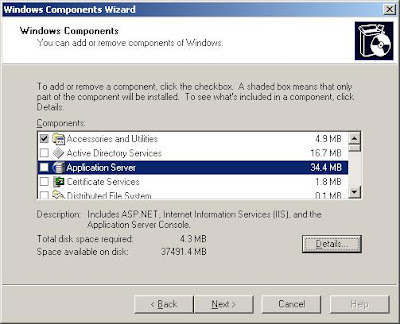
1. Go to Add or Remove Programs and choose Add/Remove Windows Components
2. Under Windows Components Wizard, highlight Application Server and click Details.
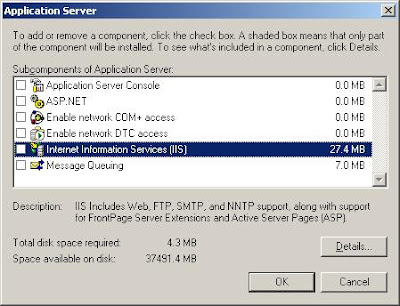
 3. Under Application Server, highlight Internet Information Services (IIS) and click Details
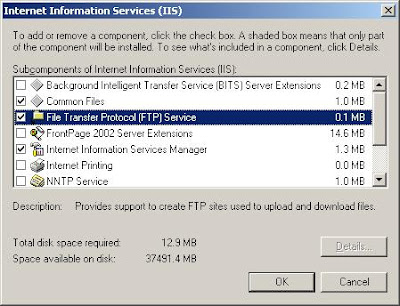
 4. Under Internet Information Services (IIS), select File Transfer Protocol (FTP) Service and click OK.
 5. You will be prompted to insert the Windows installation disc.
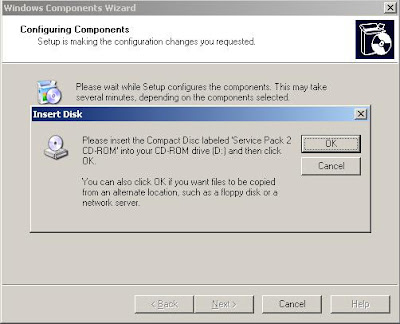
6. And that's it, you will be able to access Internet Information Services (IIS) Manager to further configure your ftp server.

1. Go to Add or Remove Programs and choose Add/Remove Windows Components
2. Under Windows Components Wizard, highlight Application Server and click Details.
 3. Under Application Server, highlight Internet Information Services (IIS) and click Details
 4. Under Internet Information Services (IIS), select File Transfer Protocol (FTP) Service and click OK.
 5. You will be prompted to insert the Windows installation disc.

6. And that's it, you will be able to access Internet Information Services (IIS) Manager to further configure your ftp server.

Subscribe to:
Posts (Atom)